

Selecting the Document Type (Document Type)
You can select a document type from [Text], [Text&Photo], [Photo], or [Photo (Glossy)] to make copies at the most suitable quality.
Note
-
If you select [Text], the gray level may be reduced depending on the document.
-
If you select [Photo] or [Photo (Glossy)], fine texts or lines may be blurred depending on the document.
-
If you select [Photo (Glossy)], images may be bright.
-
Press
 (COPY).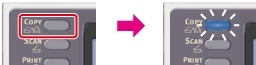
-
Set a document in the ADF or on the document glass.
-
Press
 to display the [Change Settings] menu.
 -
Press
 to select [Image Settings], and then press
  (OK).
(OK).
-
Press
to select [Document Type], and then press (OK).
-
Press
to select a document type, and then press (OK).
Available type settings
Text,
 Text&Photo*,Photo,Photo (Glossy)
* indicates the factory default setting.
Memo
-
[Text]: Set when copying a text document.
-
[Text&Photo]: Set when copying a document having texts and photos. The well-balanced text and photo are reproduced on an image.
-
[Photo]: Set when copying photos and graphic documents. Images are reproduced with the focus on grayscales.
-
[Photo (Glossy)]: Set when copying photo documents printed on a glossy silver halide photography or glossy inkjet paper. Images are reproduced with the focus on grayscales in consideration of the glossy.
-
-
Press
 (START).
Copying starts.