

Copying a Document with a Colored Background Clearly (Background Removal)
To adjust a level of the document background removal, you can select Auto, OFF, or adjustments in six levels.
If you select [Auto], the background is automatically removed in a level that suits the document.
Note
If a greater value of the background removal is set, fine lines, texts or light colors may not be reproduced depending on the document.
-
Press
 (COPY).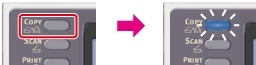
-
Set a document in the ADF or on the document glass.
-
Press
 to display the [Change Settings] menu.
 -
Press
 to select [Image Settings], and then press
  (OK).
(OK).
-
Press
to select [Background Removal], and then press (OK). -
Press
to select the desired value, and then press (OK).Available value settings
Auto*,
 OFF,1,2,3,4,5,6
* indicates the factory default setting.
Memo
To increase a level of the document background removal, select [4], [5], or [6]. To decrease a level of the document background removal, select [2], [1], or [OFF] (no removal).
-
Press
 (START).
Copying starts.