

Names and Functions
This section describes the names and functions of components on the operator panel.
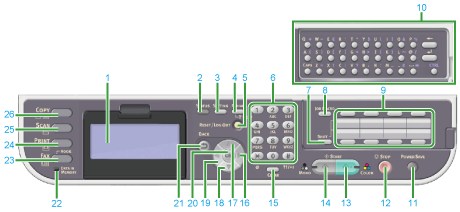
|
No. |
Name |
Function |
|---|---|---|
|
1 |
Display screen |
Displays operation instructions and the status of the machine. |
|
2 |
Status |
Displays the status menu. Flashes/lights up if there is an error. You can check the remaining amount of consumables and fax communication status. |
|
3 |
Setting |
Displays the machine setting menu screen. |
|
4 |
REDIAL/?HELP |
Displays the Help screen. To close the screen, press You can check how to solve an error or other information. On some screens, redials the last phone number you dialed. |
|
5 |
RESET/LOG OUT |
MemoFor the copy function, the top screen is the same as the start screen. |
|
6 |
10-key pad |
Enters numbers, alphabets, and symbols. |
|
7 |
SHIFT |
Switches between two e-mail addresses or fax numbers that are registered in each |
|
8 |
JOB MACRO |
Calls settings for the copy, scan or other functions. You must register settings in advance. Operating a Frequently-used Setting with a One-touch Key (JOB MACRO) |
|
9 |
One-touch |
Calls e-mail addresses or fax numbers that are frequently used for the copy, fax, or other functions. You must register e-mail addresses and fax numbers in advance. You can register two items in each of eight buttons, a total of 16 items. |
|
10 |
QWERTY keyboard |
Enter characters. The keyboard is located under the one-touch key. |
|
11 |
POWER SAVE |
Enters or exits the power saving mode. In Power Save mode, lights up in green; In Sleep mode, flashes in green (every 3 seconds); In Deep Sleep mode, flashes in green (every 6 seconds). |
|
12 |
Stop |
Cancels copying, fax transmissions, or other jobs. |
|
13 |
Start color |
Starts scanning in color. |
|
14 |
Start mono |
Starts copying, scanning, faxing, or printing from USB Memory in monochrome. |
|
15 |
CLEAR |
Executes the following operations by pressing, or pressing and holding this key according to the entry item.
|
|
16 |
|
|
|
17 |
|
Moves the cursor up during item selection or character entry. |
|
18 |
|
Moves the cursor down during item selection or character entry. |
|
19 |
|
|
|
20 |
OK |
|
|
21 |
BACK |
Returns to the previous screen. |
|
22 |
DATA IN MEMORY indicator |
Lights up when data remains in memory. MemoDoes not light up in Sleep mode even if data is in memory. |
|
23 |
FAX* |
Displays the fax function screen. |
|
24 |
Print* |
Displays the print function screen. |
|
25 |
Scan* |
Displays the scan function screen. |
|
26 |
Copy* |
Displays the copy function screen. |
 (REDIAL/?HELP),
  (BACK), or
  (RESET/LOG OUT).
 (Scroll right)
 (Scroll up)
 (Scroll down)
 (Scroll left)
* The button of the selected function lights up in blue.