

Entering with the On-screen Keyboard
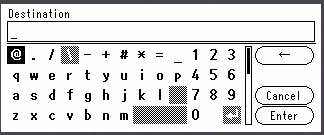
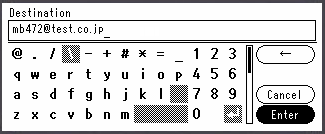
When you need to enter characters while you are setting an item, the following entry screen is displayed.
You can enter uppercase and lowercase alphabets, numbers, and symbols.
Memo
When you need to enter only numbers, the on-screen keyboard may not be displayed. In such a case, use the 10-key pad to enter numbers.
-
Press
 ,
,  ,
,  , or
, or  to select a character, and then press
  (OK).
(OK).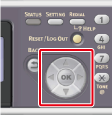
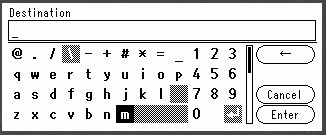
The selected character is entered in the text field.
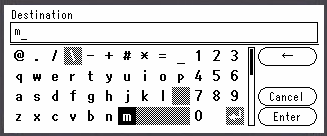
-
Repeat step 1 until you enter all the characters.
-
Press
or to select [Enter], and then press (OK).
Deleting an Entered Character
Use [ ] on the on-screen keyboard.
-
Press
and to select [], and then press (OK) to delete the last character you entered. -
Delete a character in the character string by following the procedure below.
(1) Press
to select the text field.
(2) Press
or to move the cursor (_) to the character next to the character to delete.(3) Press
 (CLEAR).
The character before the cursor (_) is deleted.