

Specifying the Paper Feed Tray (Paper Feed Tray)
Note
When printing a PRN file, the paper tray specification follows the driver settings at the time of file creation.
-
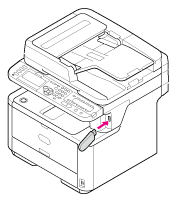
Insert USB Memory into the USB port.
Note
Insert USB Memory straight into the USB port. Inserting USB Memory at a wrong angle may damage the USB port.
-
Press
 (PRINT).
 -
Press
 to select [Print From USB Memory], and then press
  (OK).
(OK).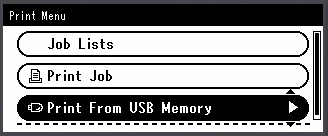
-
Check that [Select Print File] is selected, and then press
(OK).If a file to print is not saved in the folder, proceed to step 7.
-
Press
to select the folder that has the file to print, and then press (OK). -
Check that [Open Folder] is selected, and then press
(OK).Repeat steps 5 and 6 until the file to print is displayed.
Memo
To check the folder information, select [Folder Property].
-
Press
to select the file to print, and then press (OK). -
Press
to select [Select a file], and then press (OK).
Memo
To check the file information, select [File Property].
-
Press
to select [Print Setup], and then press (OK). -
Check that [Paper Feed] is selected, and then press
(OK). -
Press
to select the paper tray, and then press (OK).Selectable paper trays
Tray 1*,
 Tray 2 (Optional),MP Tray
* indicates the factory default setting.
Memo
[Tray 2] is displayed if the optional second tray unit is installed.
-
Press
 to return to the start screen.
 -
Press
 (START).
Printing starts.