

Printing to Fit the Paper Size (Fitting)
If the page size of a file to print is larger or smaller than the valid printing area, the page size is automatically adjusted to fit the paper size.
Note
When printing a PRN file, this setting does not work.
Memo
This function is set to [ON] by factory default.
-
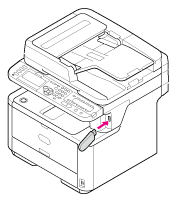
Insert USB Memory into the USB port.
Note
Insert USB Memory straight into the USB port. Inserting USB Memory at a wrong angle may damage the USB port.
-
Press
 (PRINT).
 -
Press
 to select [Print From USB Memory], and then press
  (OK).
(OK).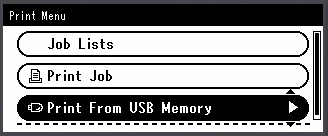
-
Check that [Select Print File] is selected, and then press
(OK).If a file to print is not saved in the folder, proceed to step 7.
-
Press
to select the folder that has the file to print, and then press (OK). -
Check that [Open Folder] is selected, and then press
(OK).Repeat steps 5 and 6 until the file to print is displayed.
Memo
To check the folder information, select [Folder Property].
-
Press
to select the file to print, and then press (OK). -
Press
to select [Select a file], and then press (OK).Memo
To check the file information, select [File Property].
-
Press
to select [Print Setup], and then press (OK). -
Press
to select [Fit], and then press (OK). -
Press
to select [ON] for fitting, and then press (OK).Memo
To not perform fitting, select [OFF].
-
Press
 to return to the start screen.
 -
Press
 (START).
Printing starts.