

Using Scan to Shared Folder
This section describes how to operate Scan to Shared Folder.
Scanned data is converted into a PDF, JPEG, TIFF, or XPS file. PDF is set by factory default.
Set a network and shared folder default setting before using the Scan to Shared Folder function.
Connecting This Machine to a Network
Memo
The following procedure uses the factory default setting.
-
Press
 (SCAN).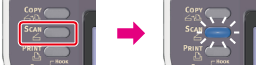
-
Set a document in the ADF or on the document glass.
-
Press
 to select [Shared Folder], and then press
  (OK).
(OK).
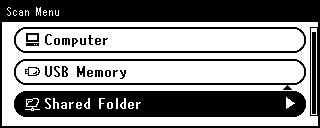
-
Check that [Select Profile] is selected, and then press
(OK).If a profile is not displayed, check the Scan to Shared Folder settings.
-
Press
to select a profile, and then press (OK).
-
Set scan settings if necessary.
-
Press
 or
or  .
.Scanning starts.