

Scanning from the Operator Panel
Memo
-
To start duplex scanning, turn the setting on, and then set a document in the ADF. If you set a document on the document glass, you cannot scan both sides of the document even if you turn duplex scanning on.
-
If you use the scanner application on a computer, a document is scanned with the scanner type of the scan profile setting on the computer, regardless of where the document is set or the [Duplex Scan] setting.
-
Press
 (SCAN).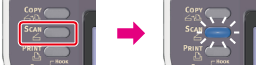
-
Set a document in the ADF or on the document glass.
-
Press
 to select [Computer], and then press
  (OK).
(OK).
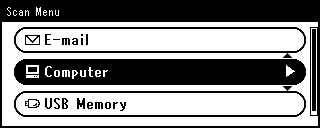
-
Check that [Select A Connecting PC] is selected, and then press
(OK). -
Press
to select [From WSD Scan], and then press (OK). -
Press
to select a destination computer to send the scanned data, and then press (OK).
You can set an action for each event in Windows scan properties.
-
Press
to select [Duplex Scan], and then press (OK).
-
Press
 or to select [ON] or [OFF], and then press (OK).
 -
Press
 or
or  .
.Scanning starts.