

Setting a Document Open Password and Permission Password (Encryption Level: [Low])
This section describes how to set the encryption level to [Low], and set a document open password and permission password.
-
Press
 (SCAN).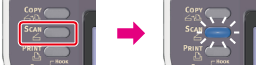
-
Set a document in the ADF or on the document glass.
-
Select a scan type from [Scan Menu], and then press
 (OK).
(OK). -
Press
 to select [Scan Setting], and then press (OK).
-
Press
to select [Encrypted PDF], and then press (OK).
-
Press
to select [Encrypt], and then press (OK).
-
Press
to select [Low], and then press (OK).
-
Press
to select [Enable] or [Apply Default Password], and then press (OK).A screen to set a document open password is displayed.
To select [Apply Default Password], you must register the default password in this machine in advance.
-
Press
 to enter a password.
A document open password is intended to open an encrypted PDF file. A document open password cannot be the same as a permission password. You can enter up to 32 characters.
-
Select [Enter], and then press
(OK). -
Enter the password again.
-
Select [Enter], and then press
(OK). -
Press
to select [Enable] or [Apply Default Password], and then press (OK).A screen to set a permission password is displayed.
To select [Apply Default Password], you must register the default password in this machine in advance.
-
Press
to enter a password.
A permission password is intended to control printing, extracting, editing, or other operations for encrypted PDF files. A permission password cannot be the same as a document open password. You can enter up to 32 characters.
-
Select [Enter], and then press
(OK). -
Enter the password again.
-
Select [Enter], and then press
(OK). -
Press
to select the permission to print a document, and then press (OK).
Available printing permissions
Not Allowed*,
 High Resolution
* indicates the factory default setting.
-
Press
to select the permission to extract text and graphic, and then press (OK).
Available printing permissions
Not Allowed*,
Allowed* indicates the factory default setting.
-
Press
to select the permission to change a document, and then press (OK).
Available printing permissions
Not Allowed*,
Allow To Make A Comment,Allow To Swap Page,Allow all op. except pg extract.* indicates the factory default setting.
-
Check the security setting, and then press
(OK). -
Press
 or
or  .
.Scanning starts.