

Printing on Both Sides of Paper (Duplex Printing)
You can select 1-sided (simplex) or 2-sided (duplex) printing. When performing duplex printing, you can select a binding position.
Note
When printing a PRN file, the duplex printing settings follow the driver settings at the time of file creation.
About long edge binding and short edge binding
Copying on Both Sides of Paper (Duplex Copy)
-
Insert USB Memory into the USB port.

Note
Insert USB Memory straight into the USB port. Inserting USB Memory at a wrong angle may damage the USB port.
-
Press
 (PRINT).
 -
Press
 to select [Print From USB Memory], and then press
  (OK).
(OK).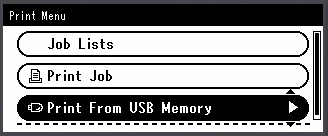
-
Check that [Select Print File] is selected, and then press
(OK).If a file to print is not saved in the folder, proceed to step 7.
-
Press
to select the folder that has the file to print, and then press (OK). -
Check that [Open Folder] is selected and then press
(OK).Repeat steps 5 and 6 until the file to print is displayed.
Memo
To check the folder information, select [Folder Property].
-
Press
to select the file to print, and then press (OK). -
Press
to select [Select a file], and then press (OK).Memo
To check the file information, select [File Property].
-
Press
to select [Print Setup], and then press (OK). -
Press
to select [Duplex], and then press (OK). -
Press
to select [ON] for duplex printing, and then press (OK).Memo
To perform simplex printing, select [OFF].
-
Press
to select [Binding], and then press (OK). -
Press
to select [Long Edge Bind] or [Short Edge Bind], and then press (OK). -
Press
 to return to the start screen.
 -
Press
 (START).
Printing starts.