

Setting Google Cloud Print
To use Google Cloud Print, a Google account is required. This section describes how to register the machine in Google Cloud Print using a Google account.
If you already have an account, there is no need to create a new account. Proceed to step 3.
Memo
-
To enter the [Google Cloud Print] menu, the administrator password is required.
-
Although this manual describes the procedure for setting the servers from the operator panel, it is recommended to set the servers from the Web page of this machine if you can operate from a computer.
To check from the Web page, select [Admin Setup] > [TCP/IP] in "Using the Web Page of This Machine".
-
Access the Google Web site from a computer, smartphone, or other mobile device.
Google Web site (https://accounts.google.com/signup)
-
Create a Google account by following the on-screen instructions.
-
Check the IP address, subnet mask, and gateway address of the machine are set correctly.
-
Press
 (SETTING).
-
Press
 to select [Google Cloud Print], and then press
  (OK).
(OK).
-
Press
to select [Google Cloud Print Settings], and then press (OK).
-
Press
to select [DNS Server (Primary)], and then press (OK).
-
Check the [DNS Server (Primary)] setting value.
Since [0.0.0.0] indicates that the value is not set correctly, set the IP address that suits your environment.
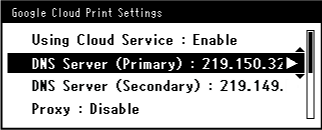
If the secondary DNS server is used, select [DNS Server (Secondary)] in step 7, and then set the IP address.

If the proxy server is used, select [Proxy] in step 7, and then proceed to step 9.

-
Select [Enable], and then press
(OK).
-
Select [Proxy Server], and then press
(OK).
-
Enter a server name.
-
Select [Proxy Server Port No.], and then press
(OK). -
Enter the proxy server port number.

-
Select [Proxy User ID], and then press
(OK).
-
Enter the proxy user ID.
-
Select [Proxy Password], and then press
(OK).
-
Enter the proxy password.
Memo
For the setting values, contact your network administrator.
-
Press to return to the [Google Cloud Print] menu.
-
Select [Register to Google Cloud Print], and then press
(OK).
-
When the [Register device to Google Cloud Print? Note: A Google account is required for registration.] message is displayed, select [Yes].

-
When the authentication destination URL is displayed, press
(OK) on the operator panel.
The authentication destination URL is printed.
Note
-
There is a time restriction for registration (authentication) processing (approximately 10 minutes).
-
Proceed to step 26 within the time restriction to complete the registration.
-
If you cannot complete within the time restriction and an error message is displayed, return to step 19, and then register again.
-
-
Access the authentication destination URL that you printed in step 21 from a computer or mobile device.
-
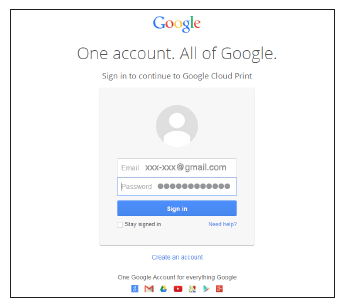
When the Google account login screen is displayed, enter the Google account information, and then click [Sign in].
-
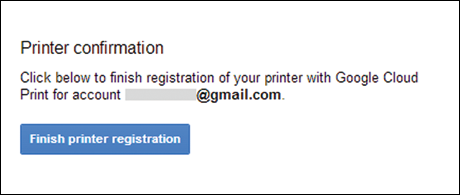
When the registration screen is displayed, click [Finish printer registration].
-
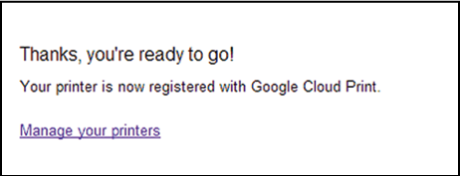
Wait until the [Thanks, you're ready to go!] message is displayed.
-
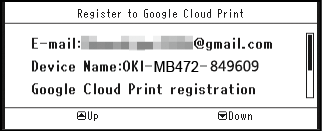
When the registration content and completion message is displayed on the operator of the machine, check the message by scrolling the screen.

-
Press
(OK) on the operator panel.