

Sending Scanned Data to a Computer
This operation is common to Windows and Mac OS X.
For the Network Connection
An image that is scanned with this machine is sent to a computer via a network. You can display the image on the specified application, save the image in the specified folder, or start a fax transmission application.
-
Press
 (SCAN).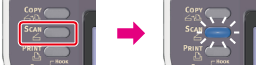
-
Set a document in the ADF or on the document glass.
-
Press
 to select [Computer], and then press
  (OK).
(OK).
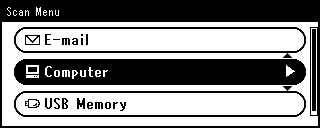
-
Check that [Select A Connecting PC] is selected, and then press
(OK). -
Check that [From Network] is selected, and then press
(OK). -
Press
to select a computer to connect, and then press (OK).
If a target computer is not displayed in the PC list, register the computer in this machine.
-
Press
to select [Select An Application], and then press (OK).
Memo
-
If you select [Application], an application that is associated with a file format specified with ActKey starts, and the scanned image is displayed in the application.
-
If you select [Folder], the scanned document is saved in the specified folder.
-
If you select [PC-FAX], a fax transmission application starts. After sending the scanned document, send a fax with the fax transmission application on your computer.
-
-
Press
to select a destination to send the scanned document, and then press (OK).
Memo
For Mac OS X, the operation of when [Folder] is selected is applied, regardless of the selected destination.
-
Press
 or
or  .
.Scanning starts.
For the USB Connection
An image that is scanned with this machine is sent to a computer via a USB cable. You can display the image on the specified application, save the image in the specified folder, or start a fax transmission application.
-
Press
(SCAN).
-
Set a document in the ADF or on the document glass.
-
Press
to select [Computer], and then press (OK).
If the Network TWAIN function is set to [OFF], proceed to step 6.
-
Check that [Select A Connecting PC] is selected, and then press
(OK). -
Press
to select [From USB Interface], and then press (OK).
-
Press
to select [Select An Application], and then press (OK).
Memo
-
If you select [Application], an application that is associated with a file format specified with ActKey starts, and the scanned image is displayed in the application.
-
If you select [Folder], the scanned document is saved in the specified folder.
-
If you select [PC-FAX], a fax transmission application starts. After transmitting the scanned image, transmit a fax with the fax transmission software on your computer.
-
-
Press
to select a destination to send the scanned document, and then press (OK).
Selectable transmission destinations
Application,
 Folder,PC-FAX
Memo
For Mac OS X, the operation of when [Folder] is selected is applied, regardless of the selected destination.
-
Press
or .Scanning starts.
For WSD Scan connection (Windows Only)
To send a scanned image to a computer that is connected to this machine with WSD, use the Windows function. Refer to "Scanning from the Operator Panel".