

Specify a Destination by Searching the LDAP Server
You can search for a destination from a list on the LDAP server. There are two search methods, as shown below.
-
[Simple Search]: You can run a search with only one keyword as a user name. You can only search for character strings included in user names, and not in e-mail addresses.
-
[Advanced Search]: You select search conditions to search for items that include all the specified keywords or any of the keywords. You can specify user names or e-mail addresses as search keywords.
Up to 100 search results are displayed.
For details on setting the LDAP server, refer to "Setting the LDAP Server".
Memo
Specify a destination in step 6 in "Sending an Internet Fax".
For Simple Search
-
Press
 to select [LDAP], and then press
  (OK).
(OK).
-
Check that [Simple Search] is selected, and then press
(OK). -
Enter a keyword to search for a user name in the LDAP server.
-
Select [Enter], and then press
(OK).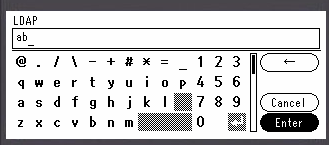
-
When the search results are displayed, press
to select a destination, and then press (OK).The check box is selected. You can select multiple addresses.
-
When you complete the selection of all the destinations, press
 .
. -
Check that [Complete] is selected, and then press
(OK). -
Press
 to return to the start screen.
For Advanced Search
-
Press
to select [LDAP], and then press (OK).
-
Press
to select [Advanced Search], and then press (OK).
-
Check that [Search Method] is selected, and then press
. -
Select [OR] or [AND], and then press
(OK). -
Press
to select [User Name], and then press . -
Enter the keyword to search for.
-
Select [Enter], and then press
(OK). -
Press
to select [E-mail Address], and then press . -
Enter the keyword to search for.
-
Select [Enter], and then press
(OK). -
Press
(OK) to start searching.
-
When the search results are displayed, press
to select a destination, and then press (OK).The check box is selected. You can select multiple addresses.
-
When you complete the selection of all the destinations, press
. -
Check that [Complete] is selected, and then press
(OK). -
Press
to return to the start screen.